Showing posts with label Export to Excel. Show all posts

Thursday, February 8, 2018

Data Management Part 3: Cleaning Up Export for Re-Import Issues

As mentioned in Part 1: Bulk Edit and Part 2: Export for Re-Import, this material is based off my presentation done on CRMUG: The Advanced Basics: Where DO I Go Next as a CRM Admin? In that session, we covered a few topics including out of the box data management techniques. I wanted to dedicate a few blog posts to these topics to help more new CRM administrators!

Even when you are very careful there are always times that you make mistakes. Mistakes are okay as long as you know how to fix them (better if you can fix them before your boss finds out!). So here is some guidance on dealing with issues with Export for Re-import.

Failures on Import

A good kind of problem with Export for Re-Import is import failures. This just means some of your items may not have imported. This generally happens for two reasons:

  1. The data was modified since you exported it. If the record changed since your export you cannot import it as you might overwrite data. To resolve, simply do a new export and update that row.
  2. Lookup could not be resolved. If one of the fields you are updating is a lookup field there is a possibility that it couldn't find the record you wanted to link to or there were duplicates. With Export for Re-Import you cannot control how it searches for the correct lookup (different from a import of new records where you build the data map). It will always just look at the primary key and name. 
You can review these failures from opening the Import job and navigating to the Failures area. There is also a button here that allows you to Download Error Rows. This will give you a list of the full data row that failed so you can review and determine the best way to resolve.

Wrong Data Imported

The bad kind of problem with Export for Re-Import is when the wrong data is imported. This could mean you did some sorting and somehow misaligned the hidden GUID column and the data. Or this could even be because data was removed from the file that shouldn't have been.

I recommend the following tips when doing your export to prepare for failure:
  • Eliminate unnecessary columns from your export. Then if a mistake happens you have less data to clean up.
  • Eliminate unnecessary rows from your export. If possible, only export the items you expect to change.
  • Save copies of your file along the way. I save a version when I export, after I do some work, and immediately before import. This allows you to have the data to fix your mistakes or see where it went wrong.
So let's say you do an export and you realize that the data imported was incorrect. You do not want to restore your database so you want to resolve with a new import. Here are the steps I would follow.
  1. Start with a few deep breaths, no time for tears (flexible depending on amount of data problems)
  2. Export the data that was modified with the same columns changed (remember you will be the Modified By user). We will call this NEW Export
    1. Save a backup copy of this as well! Then if you get confused somewhere in this process you can quickly jump back to square one
  3. Open the "Export" version you saved for the initial change. We will call this OLD Export
  4. In both files expose the 3 hidden columns (A-C). A is the GUID of the record. We are going to use this to match data between the two sheets
  5. For each column where data was changed, create a new column in NEW Export and do a vLookup using the GUID to get the data from the OLD Export
    1. I recommend doing your vLookup in a fresh column. This will be a bit easier to manipulate (without the enforced data validation) and keeps your work separate
    2. Again this is a reason to keep your columns to a minimum. You only want to do this for a few columns or it becomes hard to manage
    3. Your vLookup will look something like =vLookup([NEW Export top GUID]A2,[Old Export GUID Column]A:A, [Column you want to return]4, FALSE]. The FALSE is because you want an exact match on GUID
  6. Once your vLookup is complete for all columns, copy the data and Paste As Values into the correct place in the worksheet. Be careful if you have any rows that should not be changed!
    1. Save this version as your Work in Progress version
  7. Delete the additional columns you created. Save this version as your Import version.
  8. Import this new version of the file
  9. More deep breaths while it processes
  10. Review the results and check for failures

It's as simple as that! Moral of the story - be very careful! Double check your changes and check the GUID you change is the correct GUID of the record you want to change before doing the import the first time.

Any better methods for cleaning up import mistakes? Any Export for Re-Import horror stories to share?

Friday, February 2, 2018

Data Management Part 2: Export for Re-Import

As mentioned in Part 1: Bulk Edit, this material is based off my presentation done on CRMUG: The Advanced Basics: Where DO I Go Next as a CRM Admin? In that session, we covered a few topics including out of the box data management techniques. I wanted to dedicate a few blog posts to these topics to help more new CRM administrators!

Export to Excel is an awesome feature that gives administrators the power to make many changes very quickly. Since you are potentially editing a large volume of records there is also potential for a large amount of disaster. So follow these tips to make prevent as many errors as possible.

How to Use Export for Re-import:


  1. Create an Advanced Find of the records you want to modify. I recommend you narrow the results to just the records you want to change and only the columns you intend to edit.
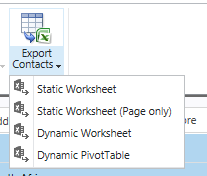
  2. Export Static Worksheet (all records)
    1. Note: If you are on CRM 2011 you will need to click an additional check box to make it available for Export for Re-Import
  3. Pro Tip: Save a copy of this file right after export as a backup!
  4. Make changes in excel
  5. Back in CRM, Click Import Data and browse to the file
  6. Submit the file
  7. Monitor the import progress in Settings -> Data Management -> Import
Advantages of Export for Re-Import:

  • Backups can be saved as you work with the data. This gives you a place to look if the final import is incorrect. The GUID is a hidden column so you can use this to match back later if necessary.
  • Workflows and Plugins will still fire similar to a regular record update (compared to direct database changes)
  • Excel formulas can be used to populate/edit the date (please read associated disadvantage before getting too excited)
  • Read Only Fields can be edited
  • Fields not on the form can be edited
Disadvantages of Export for Re-import:
  • You need to be very careful when working with the Excel workbook
    • Do not remove columns
    • If you add columns for work/calculations - these must be removed before import
    • Be careful with sorting - you do not want the hidden GUID to be associated with the wrong row of information. This could cause you to overwrite a valid record's data with data from another record. This was much easier in 2011 before the new export format.
    • Be careful with formulas - it is best to do all formulas in a separate column (just remember to delete column before re-import) and then copy and "Paste as values" into the column you want to update
  • Limited by the CRM Export Limits (if you are editing more records than you can export then you might want to find a way where you are not the potential single source of blame/failure)
  • Cannot edit completed Activities
    • You can edit some inactive records for example Won/Lost Opportunities
    • Always test in a non-production environment to make sure your plan works
Also note that this will not enforce Business Rule logic that is only firing on the form (if the scope is entity, this still should run). This can be an advantage or a disadvantage depending on the case.

In addition, any record that is modified after you export will not be updated by the import. This means that if an end user updates a record the data in your spreadsheet will not overwrite that data. So you do not want to export this data and then wait a few days to do the re-import. Best to do it all at once if possible. These types of errors will be shown in the Settings -> Data Management -> Imports area.

Security Note:
On the webinar we got a very interesting question:

you've scared me a bit that users could export, screw up and re-import bad/empty data. Is this function restricted to Admins out of the box?
What a good question! No. This is not restricted to Admins. Looking at the out of the box "Salesperson" security role they have access to Export to Excel and Data Import for user owned records. So this means that they could potentially modify all of the data for their records in just a few clicks!

How have you used Export for Re-import? Any tips or warnings I missed? Any success or horror storied to share?


Sunday, May 7, 2017

April 2017 Blog Review

Let's run through some interesting CRM blogs posted over the last month.

Ledgeview Partners posted a quick tip on Custom Coloring Dynamics 365/CRM Dashboards which shows how to set colors for different options in an option set.

Hitachi Solutions teaches the basics of entity creation through an example in Dynamics 365 Roadmap: A complete guide to Dynamics 365 Fields and Entities.

Hosk discusses How Machine Learning will Change Dynamics 365. This explains the basics of what machine learning is and where to look for more information.

Sonoma Partners shared CRM: When Homemade Doesn't Cut it. The article explains the benefits of going with a market-leading CRM system instead of building in house. I would add to this that these benefits also apply to utilizing market-leading CRM systems in the way they were designed (i.e. evaluating how your business should change to fit standard processes, avoiding unsupported changes, not over-customizing, etc.).

ReadyXRM posted on how to Stop Deactivation of Records in Dynamics 365. This utilizes a workflow to solution to inform users they should not deactivate.

Jumping ahead to May for a minute I need to share ReadyXRM's Dynamics CRM Business Rules Not Working Issue. This is an issue that my organization was battling for months and Nick Doelman was battling even longer. Spoiler Alert: even though the issue occurred even for Administrators the issue was caused by security. Microsoft is working on a fix as it involves corrupted security on the form using the Business Rule.

As always, keep an eye on the CRM Tip of the Day for news and help. This month I particularly liked When Export to Excel Fails for No Reason. This explains how having columns of the same name will cause the export to fail.

That's all for today folks! Have a great day!


Friday, September 18, 2015

September 18 Blog Review

 With CRMUG Summit quickly coming up, let’s start this review with an article from Microsoft – the Do’s and Don’t for Striking up Conversation. This gives some quick networking tips and ideas to consider.

The CRM Team Blog posted an update to the Scalable Security Modeling White Paper. This includes new information about hierarchy security modeling and optimizing your design for security.

Ledgeview Partners shared – Lookup Field vs Option Sets in Dynamics CRM. This talks about option sets, global option sets, and lookup fields and the values for each type.

PowerObjects posted about Enhanced Field-Level Security Features in CRM 2015. System Fields are now available with field level security and there are several other enhancements to look into.

PowerObjects also shared 10 Data Export and Import Redesign Features in Dynamics CRM Online 2015 Update 1. This talks about improvements with the export functionality as well as new features like being able to update through Excel Online.


That’s all I have to share today. Have a great weekend!

Friday, October 31, 2014

October 31 Blog Review

Happy Halloween! It’s time for some CRM Treats and hopefully no tricks.

PowerObjects posted about What’s New for Marketing in CRM: Fall 2014. Read to learn about the new CRM features coming for marketers.

CRM Tip of the Day wrote a tip about Updating Fields on Disabled Records. This describes how you can update disabled records using Export for re-import.

CRM Tip of the Day also posted about Unconditional Business Rules. This talks about how you can make Business Rules that always fire.

Exciting tip from Julie Yack – You can now disable the First Things First lady.

Just a quick recap today so we can all go eat some candy!

Friday, July 11, 2014

July 11 Blog Review

Today is such a busy day here in America – free Slurpees at 7-11 and Cow Appreciation Day at Chick-Fil-A. Why isn’t it a holiday? How do they expect us to work under these conditions?

Moving on. Let’s take a look at the CRM news this week.

Hitachi Solutions posted New Shoes and Dynamics CRM Upgrades. This contains a great Features Cheat Sheet that describes the new features in 2013 and the Spring 2014 update.

PowerObjects posted a helpful tip: How to Open a CRM XML File on a Windows 8 or 8.1 Device. When you Export some data to Excel from CRM on a Windows 8+ device it will not automatically open in Excel. Follow the directions to fix this.

PowerObjects also posted about how to Display Business Process Values on Forms in CRM 2013. Adding these fields to your form can assist while you figure out reporting or other automation options.

There were several great CRM Tips of the Day. Check out Tip #175: Miscellaneous privileges with multiple access levels to learn where you can trim down the access those miscellaneous privileges offer. Also take a look at Tip #173: Don’t disable Quick Create for Standard Entities. This discusses what happens if you turn off quick create and try to use the tablet app.

Mitch Milam posted Refreshing you Development or QA Environment with Production Data. This goes through the important steps when you want to update the data in your other environments to match production.

Sonoma Partners loves to talk about mobile and this week is no different. Check out The Seven Use Cases Your Mobile CRM Sales Application Must Nail. This talks about the important features that your mobile workforce needs to be able to accomplish on their device. These things are necessary to achieve good user adoption.


That is all the news I have to pass along this week. Have a great weekend!

Saturday, March 1, 2014

February 28 Blog Review

Most of the CRM news this week relates to Convergence next week. It should be a great event with lots of CRM MVPs and other superstars there to report back on the news. Let’s take a quick look at the other news this week.

CustomerEffective wrote about a solution to a customer’s CRM 2013 SubGrid to Associated View button. Basically the issue is that a sub grid on your form may not have the button to see the associated view for that record. The issue results from removing that related record from the main record type’s navigation.

CustomerEffective also wrote about Design and Scalability Considerations when using Access Teams in CRM 2013. This compares traditional owner access with sharing to Access Teams. Both access methods have their advantages but must be used in moderation. Using sharing as the primary method for access can result in slow performance especially in organizations with a large number of records.

McGladrey wrote an interesting blog on Export Limitations from CRM to Excel. As you probably know, there is a limit to the number of records you can export (for good reason because you don’t want people exporting all your data, perhaps accidentally, and causing performance to go down). However, you can get around this either by changing the export limit or through a changing the parameters of a dynamic Excel workbook.

The CRM Team posted the Integration Guide: CRM Online and Office 365 to help our CRM Online readers.

Sonoma Partners posted two blogs this week about dealing with vendors – Six Questions to Ask Before you Sign your CRM Contract and CRM Software RFPs – When Good Ideas go Wrong.

Sonoma Partners also posted about What’s New in CRM 2013 for End Users: Quick Create. Quick Create is a great new feature that allows users to create records without needing to leave what they are working on.

Scott Durow posted Real Time Workflow or Plugin? There are advantages to both options. Two principles discussed are that you should use plugins if there are already plugins on an entity, or if you know that it will need a very high throughput. However the advantage of Real-Time Workflows is that they can be created by end users.

“It is true that Plugins will out perform RTWs in terms of through-put but if the frequency of the transactions are going to be low then this usually will not be an issue. If you have logic that is going to be firing at a high frequency by many concurrent users then this is the time consider selecting a plugin over a RTWF.”

That’s all for today folks. Have a great weekend!